Squash is played in a court with walls all around. Players take turns hitting the ball so that it reaches the front wall. You can use the side and back walls too. Hit a ball your opponent can't return, and you win the point.
Modes
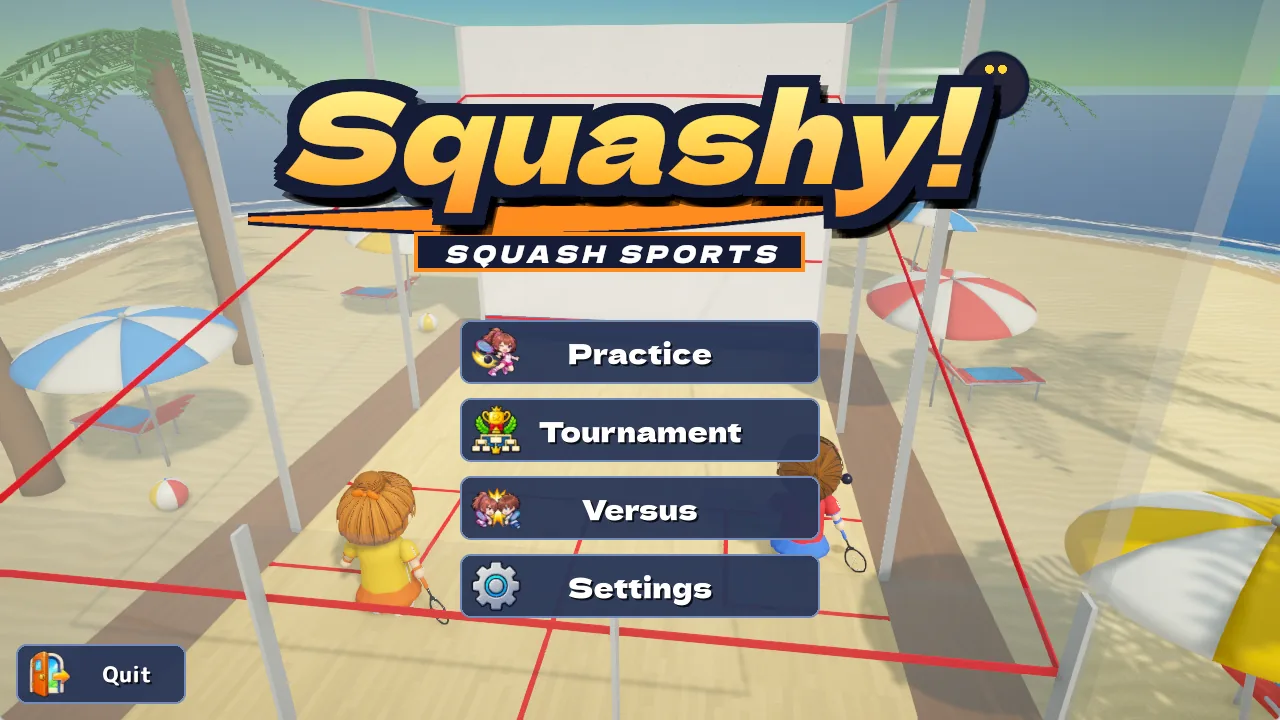
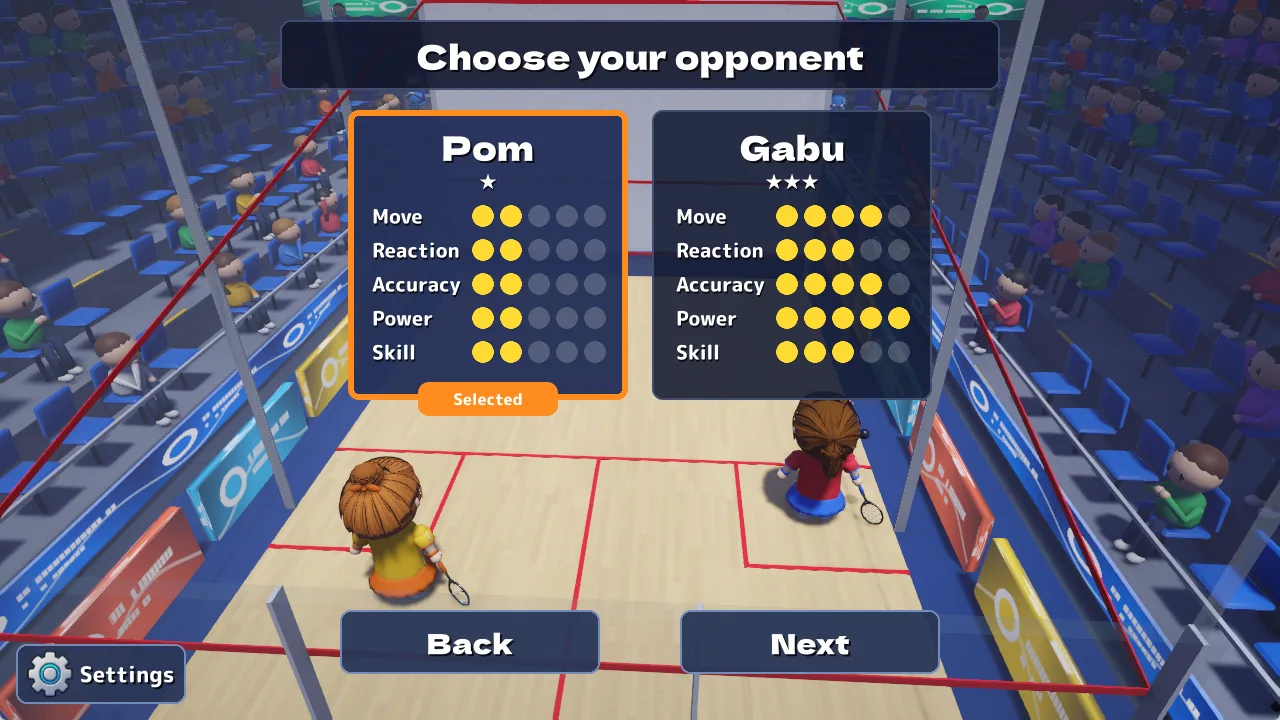
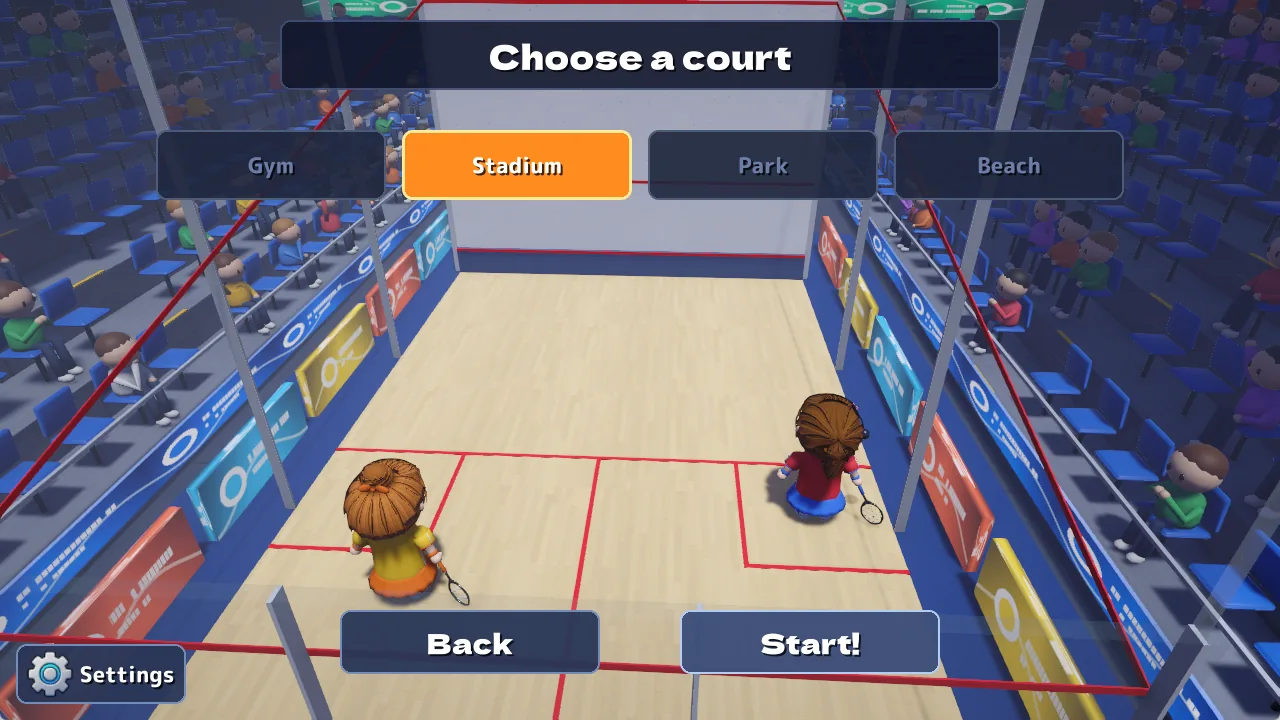
| Practice | Choose an opponent and a court, and play one game to 11. |
|---|---|
| Tournament | Enter 16-player, 4-round tournaments against the computer and aim for the title. Five tournaments in all. |
| Versus | Play one-on-one against other players online: Friend match, Free match and Online League. |
| Settings | Create your character and change stamps, controls, language and more. Also opens from the gear at the bottom left. |
Controls
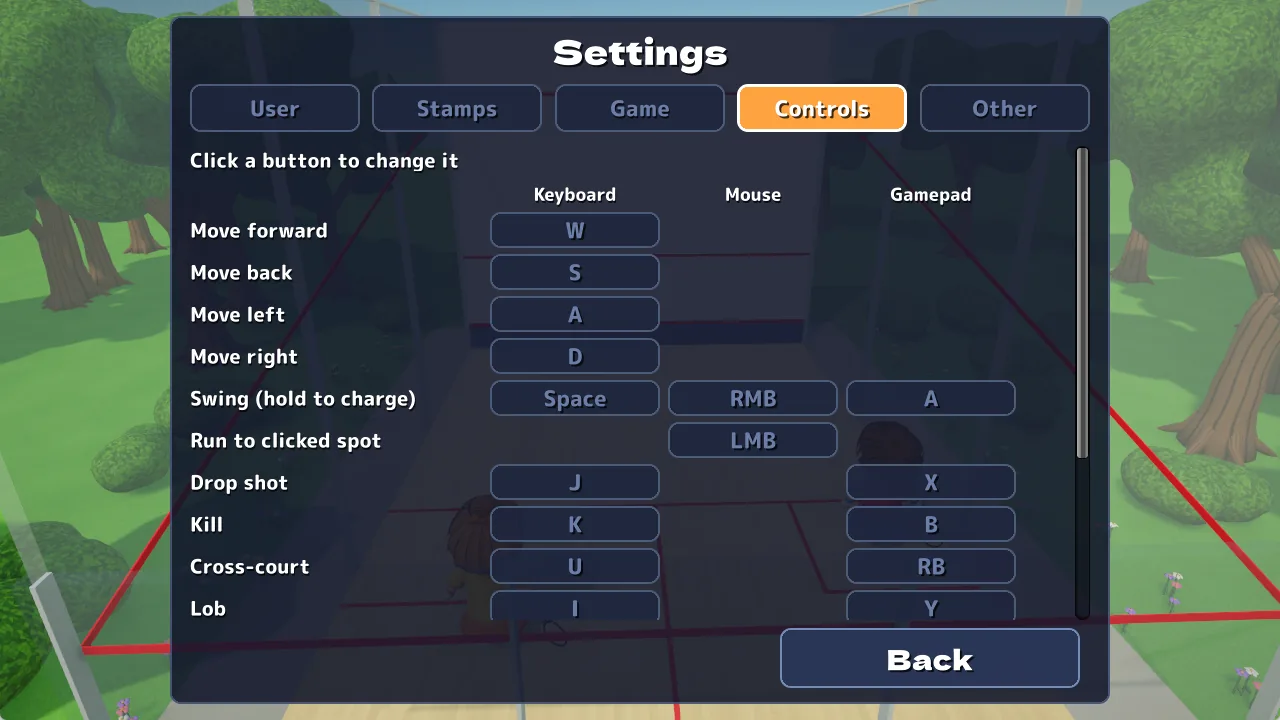
These are the default controls. On PC, you can change keys and buttons under Settings → Controls.
| Touch (phone) | Keyboard | Mouse | Gamepad | |
|---|---|---|---|---|
| Move | Touch the left side and slide | WASD / arrows | Left-click the floor (run there) | Left stick |
| Swing | SWING (bottom right) | Space | Right-click | A |
| Drop | The five circles around SWING | J | X | |
| Kill | K | B | ||
| Cross-court | U | RB | ||
| Lob | I | Y | ||
| Boast | O | LB | ||
| Change how to aim | In Settings | Tab | View | |
| Pause (Settings) | Gear at the bottom left | Esc | Start |
During a match, Settings opens only outside a rally (before a serve or after a point). In Versus and Online League, it opens only after a game is decided. If you leave the app during a Practice or Tournament match, the match pauses.
Hitting the ball
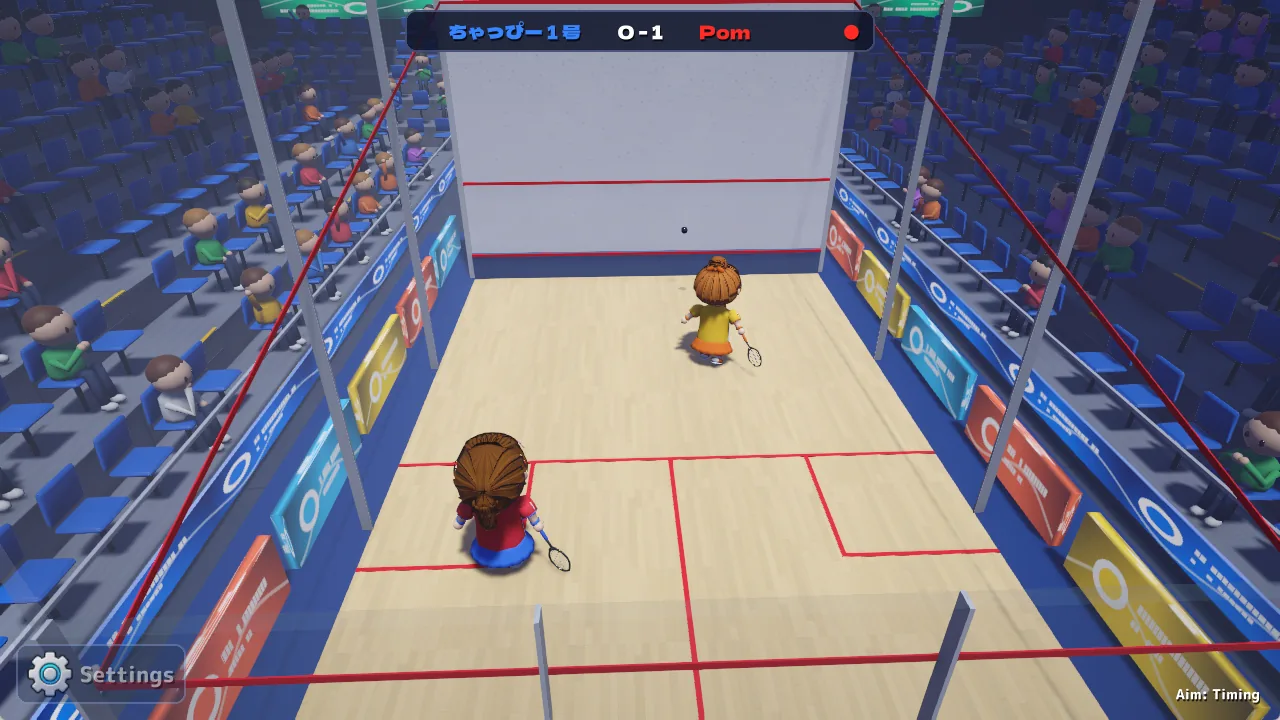
Hold the swing button to charge, and release it to swing. The longer you hold, the harder you hit; 0.7 seconds is full power. Soft shots float high, hard shots fly low and fast.
Forehand or backhand is chosen automatically from whether the ball is on your right or left.
Turn on the assist option to see a light-blue circle where you can reach the ball in time. On PC, click the floor to run to that spot (white circle).
Change it under Settings → Game, or on PC press Tab during a match.
| Timing (default) | Hit early (ball in front of you) to go cross-court, hit late (ball behind you) to go to the side wall. |
|---|---|
| Direction keys / Stick | The ball goes toward the direction key (or stick) you hold when you release the swing. With nothing held, it goes straight along the wall. On phones this is called “Stick”. |
| Easy | Automatically aims where the opponent is not. |
Five shots
Press a shot button to swing with that shot right away, without charging. When it works, “Nice …!” appears over the player's head.
| Drop | A soft touch low on the front wall that dies in the front corner. |
|---|---|
| Kill | Hit hard and low on the front wall so it bounces twice right away. |
| Cross-court | Angled into the far back corner. |
| Lob | Hit slowly high on the front wall so it arcs into the far back corner. |
| Boast | Off the nearer side wall first, then the front wall, landing in the far front corner. Easiest from near a side wall. |
Rules
- A game is first to 11. At 10-10, play continues until someone leads by 2.
- The winner of each rally scores a point. The player who won the last point serves.
- The first server is decided by a racket spin, as in real squash.
- A 3-game match is won by taking 2 games, a 5-game match by taking 3. The winner of the previous game serves first in the next.
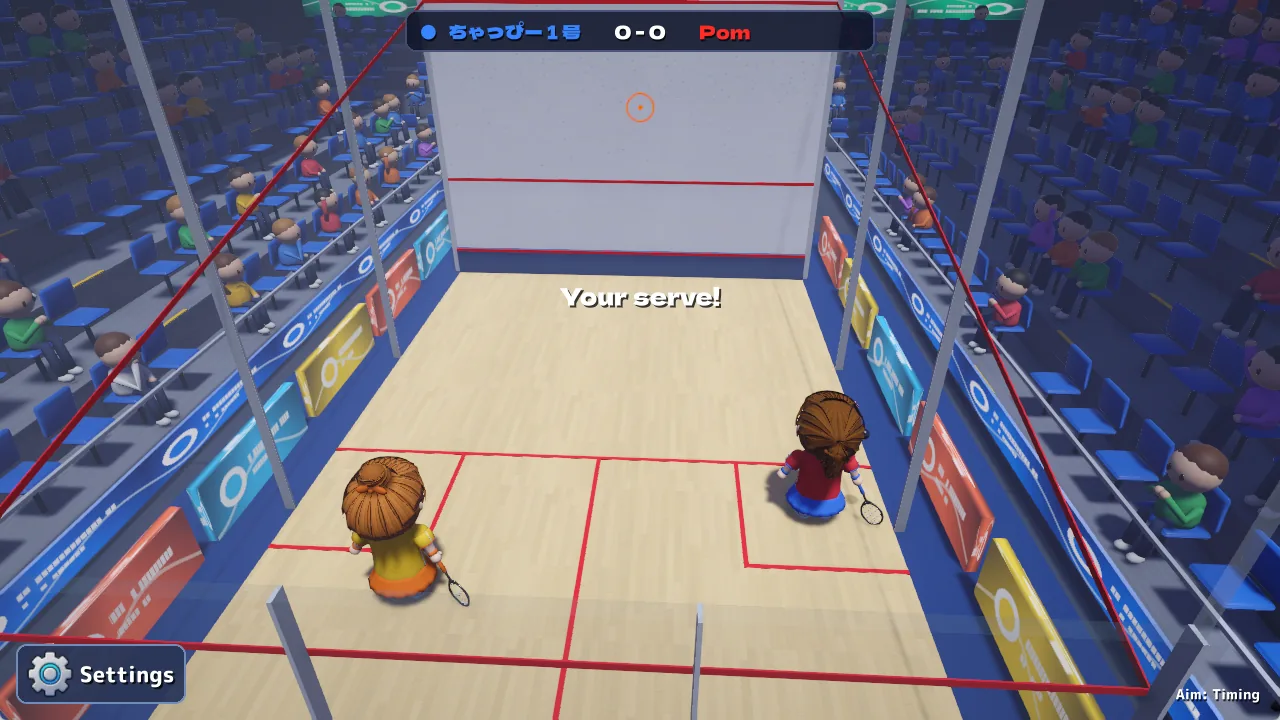
| Down | The ball hit the floor before the front wall, or hit the tin at the bottom of the front wall. |
|---|---|
| Out | The ball hit above the out line on the walls, or the ceiling. |
| Not up | The ball bounced twice on the floor before you returned it. |
| Fault | A serve must hit the front wall above the service line and land in the opposite back quarter. |
| Serve time ran out | In online matches, you did not serve within 20 seconds (a countdown appears after 10). Your opponent gets the point and the serve. |
If the ball hits a player or a player blocks the other's way, it is a “stroke”; if it is unclear, it is a “let” and the point is replayed.
Only the server can score. If the receiver wins the rally, no point is scored and the serve changes hands. Games are first to 9 or 5, with no 2-point rule.
Tournament
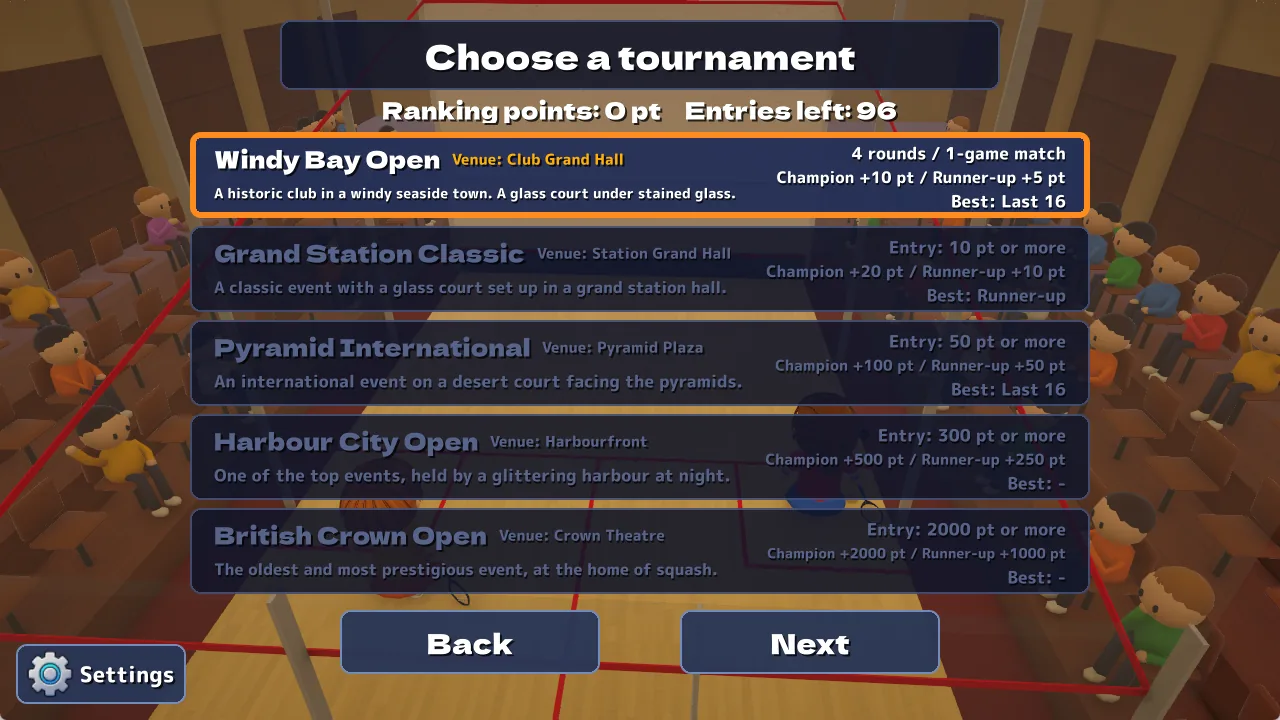
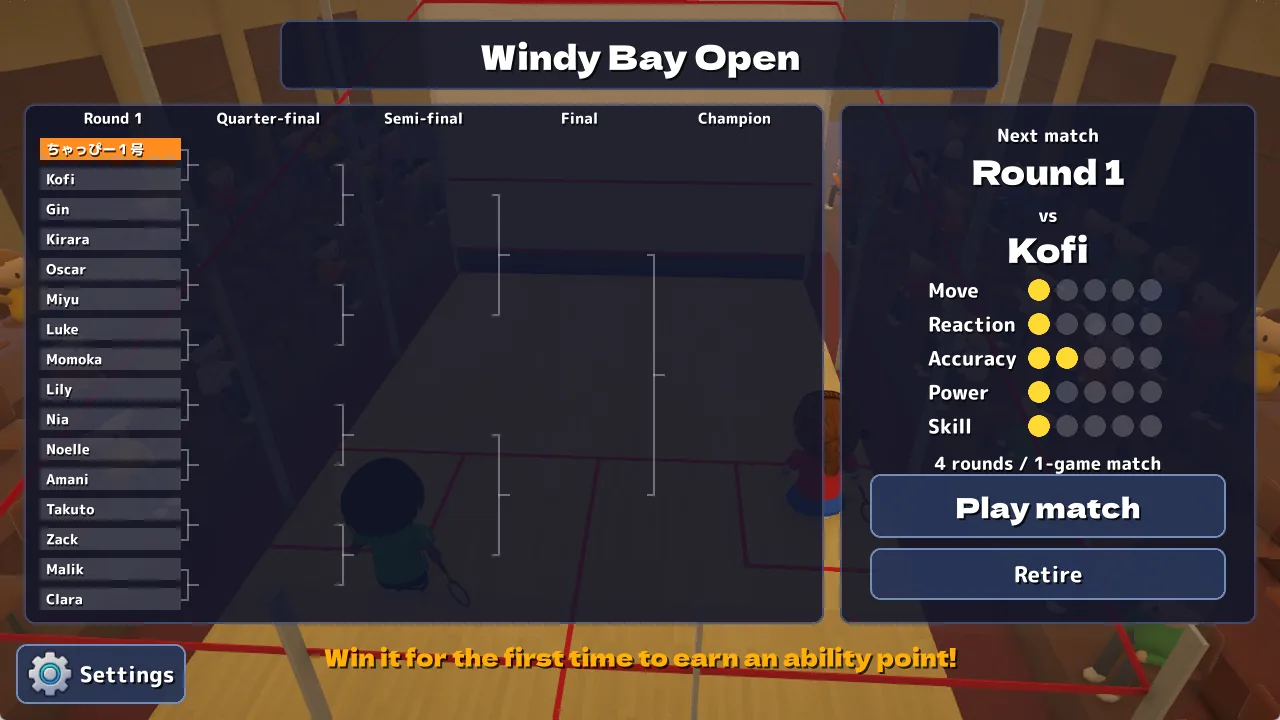
16 players, 4 rounds, against the computer. Champions, runners-up and semi-finalists earn ranking points, and with enough points you can enter the next tournament. To leave a tournament partway through, choose “Retire”.
| Tournament | Venue | Entry | Match | Champion | Runner-up |
|---|---|---|---|---|---|
| Windy Bay Open | Club Grand Hall | Anyone | 1 game | 10 pt | 5 pt |
| Grand Station Classic | Station Grand Hall | 10 pt or more | 1 game | 20 pt | 10 pt |
| Pyramid International | Pyramid Plaza | 50 pt or more | 1 game | 100 pt | 50 pt |
| Harbour City Open | Harbourfront | 300 pt or more | Best of 3 | 500 pt | 250 pt |
| British Crown Open | Crown Theatre | 2000 pt or more | Best of 3 | 2000 pt | 1000 pt |
- Each tournament uses one entry (when the first-round match starts; retiring before that costs nothing).
- You start with 20 and get 10 more every day (free entries go up to 100).
- On phones, you can add entries with “+” on the tournament select screen. Free entries are used first.
Versus (online)
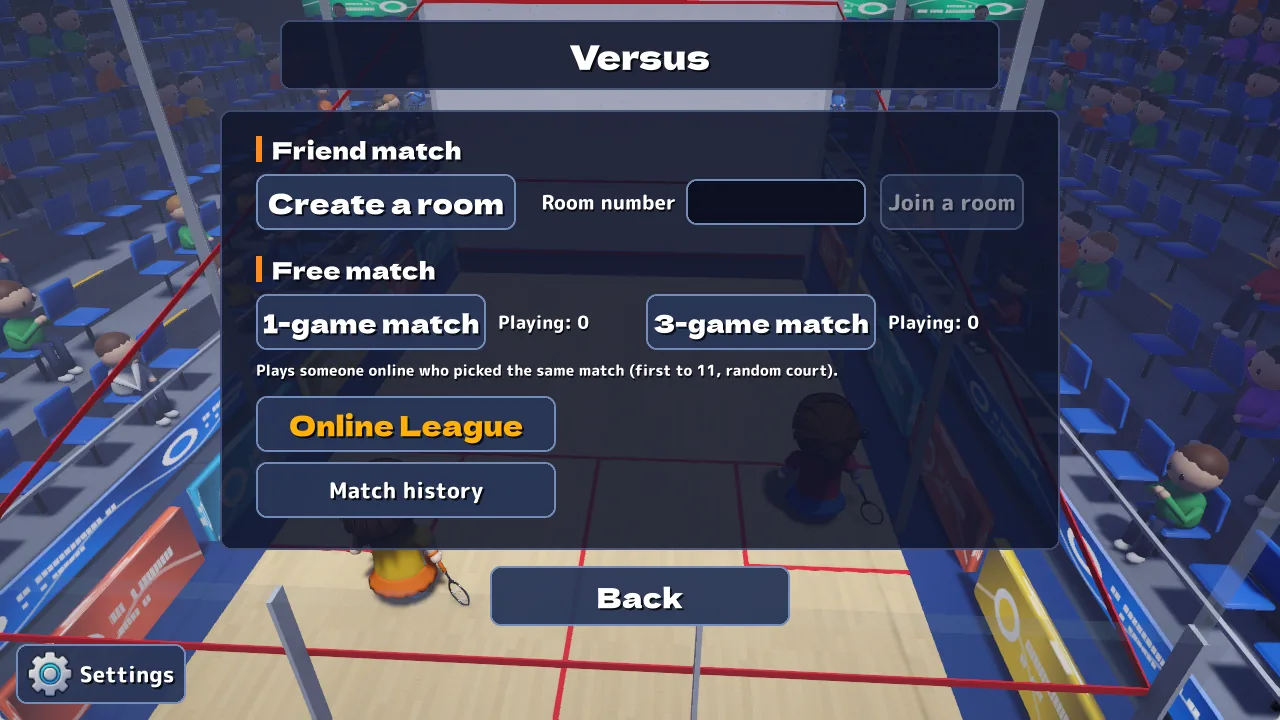
Choose “Create a room” and the match settings, and a 6-digit room number appears. Your friend enters it and chooses “Join a room”. A new room can take a few seconds to show up.
| Games | 1, 3 or 5 games |
|---|---|
| Scoring | Rally point (first to 11 or 7), hand-out (first to 9 or 5) |
| Court | Gym, Stadium, Park or Beach |
Choose “1-game match” or “3-game match” (first to 11) to be paired automatically with someone who picked the same match. The court is chosen at random. The number of players taking part is shown next to each button.
After a match, choose “Retry” (rematch the same opponent), “Next opponent” or “Menu”. Online matches cannot be paused. Your opponent sees your user name and your character (look and abilities).
Online League
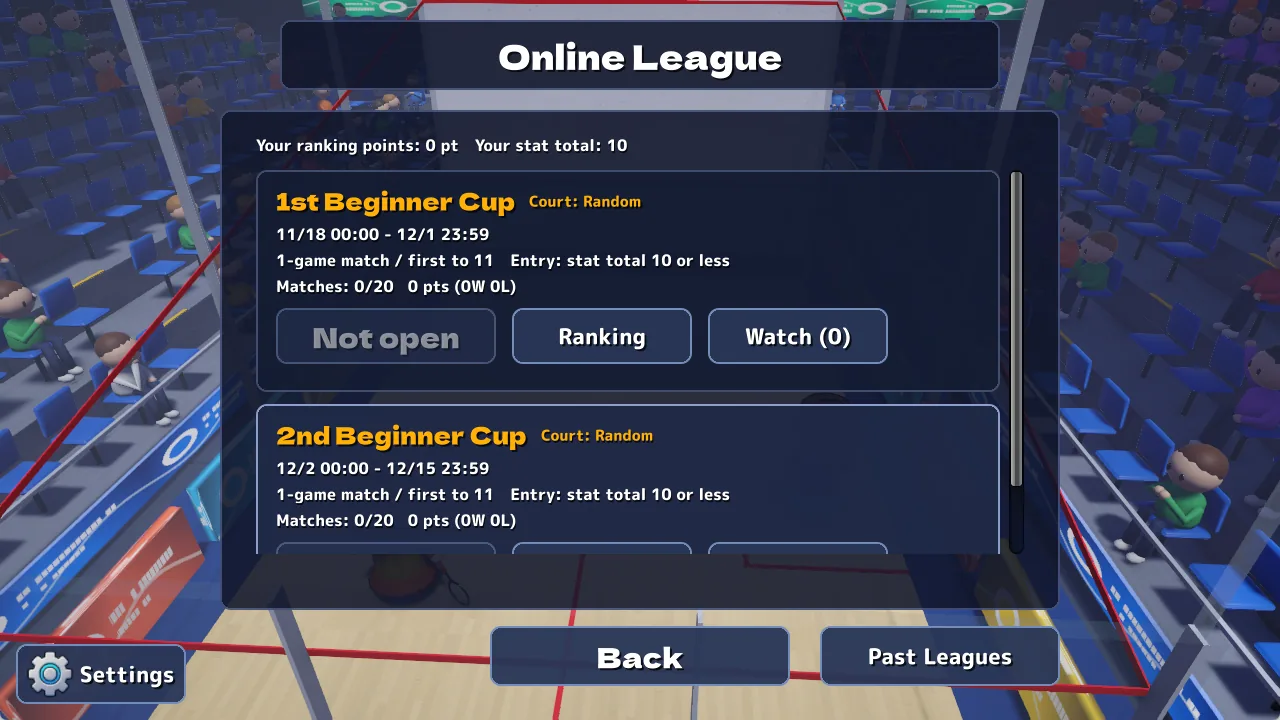
Open it from “Online League” on the Versus screen. Leagues run for a set period, and the server pairs you with a player whose results are close to yours.
Each league has its own period, match format, court, number of matches you can play, and entry requirements (such as a minimum of ranking points or a maximum stat total).
| League points | Win 3, loss 1, win by forfeit 2, loss by forfeit 0. Leaving a match partway through or losing your connection counts as a forfeit. |
|---|---|
| Ranking | Players are ranked by total league points (the top 50 are shown), along with your own rank. |
| Watch | Use “Watch” to view matches in progress. |
| Past Leagues | See the periods and rankings of leagues that ended in the last year. |
You need an internet connection to play in leagues. You do not need to link an account.
Stamps
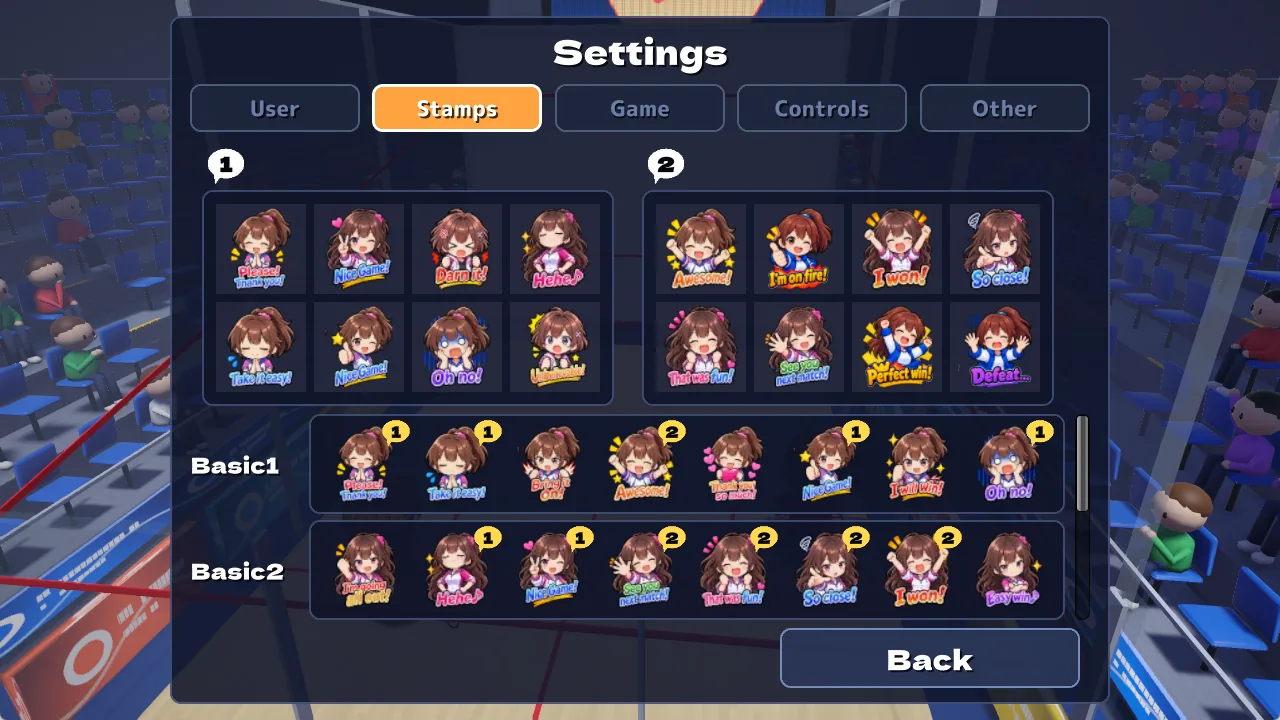
During an online match (and after it), tap the speech bubble “1” or “2” at the bottom left to open that set of eight stamps. The stamp you tap appears next to your name.
In Stamps settings, drag stamps you own into box 1 or 2 to make your sets. Drag between boxes to swap; drag out of a box to remove. Tap a stamp to see it large.
Three packs (Basic1–3) come with the game. On phones, you can add new stamps from “Add stamps”.
Report, block and match history
| Name filter | Names with inappropriate words are shown to others as “Player”. There is no free-text chat. |
|---|---|
| Report | After a Versus or Online League match (or when your opponent leaves), tap “Report / Block” at the top right to report an inappropriate name or bad behaviour. We review reports and, if needed, reset names or stop players from entering leagues. |
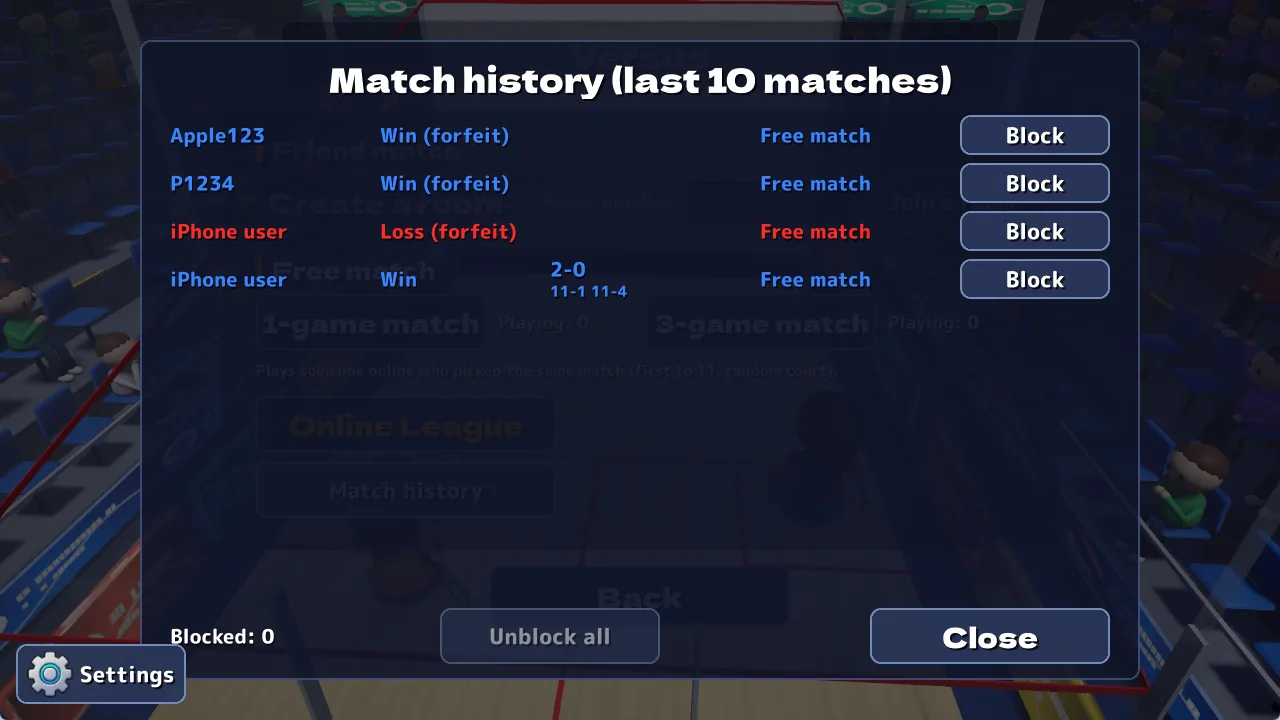
| Block | “Block” on the same screen stops you from being matched with that player again in Free match and Online League (Friend match is not affected, because you join by room number). |
| Match history | “Match history” on the Versus screen lists your last 10 Free match and Online League matches (opponent, result and score). You can block and unblock players there too. |
Character and abilities
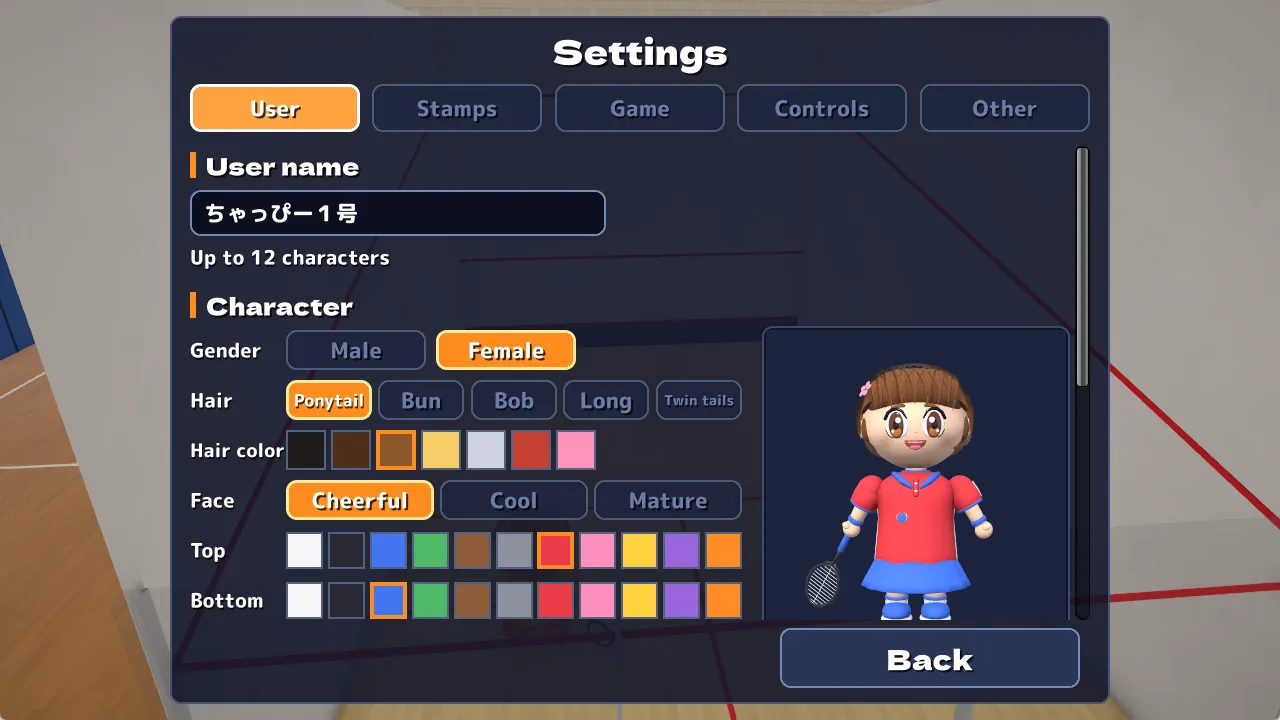
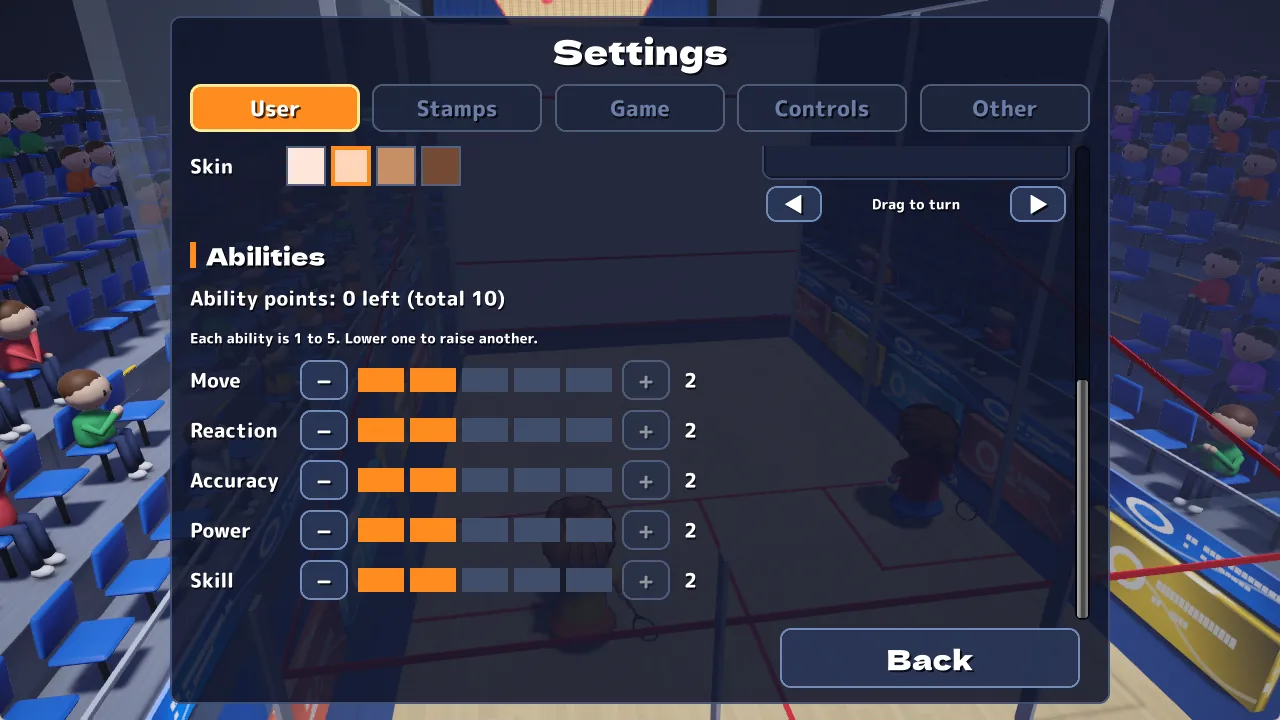
Choose your user name (up to 12 characters), gender, hairstyle, hair colour, face, top and bottom colours, and skin. Drag the player on the right, or use ◀ ▶, to turn them around.
There are five abilities, each from 1 to 5. Their total is limited by your ability points; lower one to raise another. You start with a total of 10 (all at 2).
| Move | Running speed |
|---|---|
| Reaction | Chance of diving for a ball just out of reach |
| Accuracy | How little your aim wanders |
| Power | Ball speed |
| Skill | Chance that a special shot works |
- +1 for your first title in each tournament
- +1 each time your ranking points reach 100, 500, 1000, 5000 and 10000
- On phones, you can also buy them with “+” next to your ability points (up to 5)
Settings
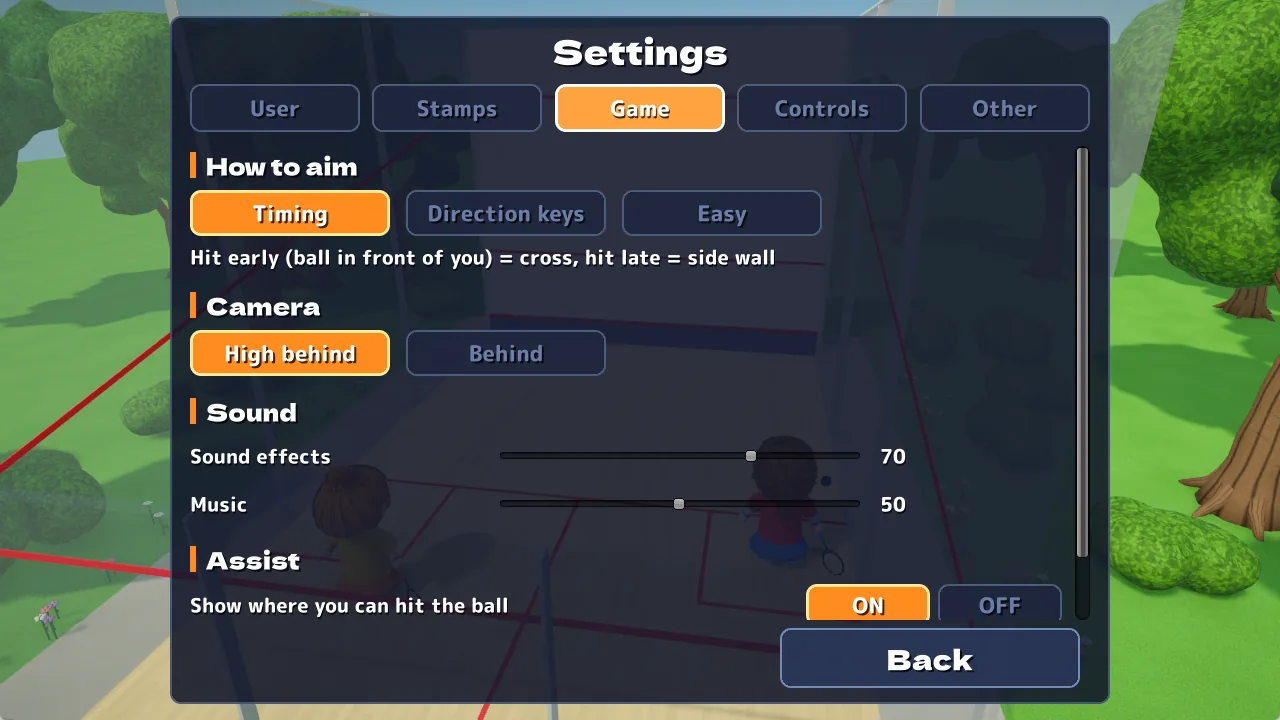
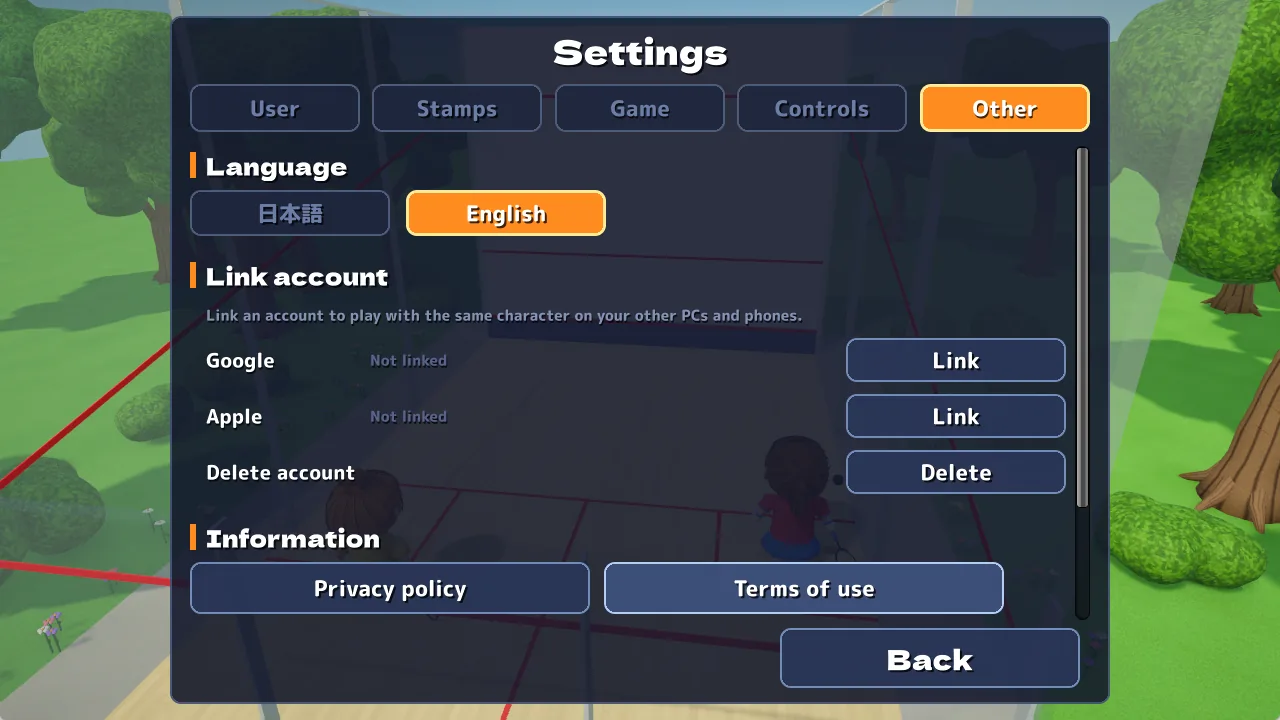
| User | User name, character creation, abilities |
|---|---|
| Stamps | Your stamp sets for matches, Add stamps |
| Game | How to aim, camera, sound effect and music volume, assist options |
| Controls | Key and button mapping (PC only) |
| Other | Language, Link account, Delete account, privacy policy and other pages, About this game |
Link an account to play with the same character, records and settings on your other PCs and phones. Linked records are saved on our servers. You can link Google on Windows and Android, and Apple or Google on iPhone.
You can also play without linking. Your records are then saved only on that device, so they cannot be carried over if you delete the app or change devices.
When you contact us, please include the user ID shown under Other → About this game. For deleting your account, see this page.
Purchases
You can play the whole game without buying anything. On phones (Android and iPhone), you can buy the following.
| Ability points | One point at a time, up to 5. From “+” next to your ability points in User settings. |
|---|---|
| Entries | Add 10, 20 or 50 tournament entries. From “+” on the tournament select screen. |
| Stamps | New stamp packs. From “Add stamps” in Stamps settings. |
Ability points and stamps can be restored with “Restore” on a new device using the same store account. Stamps you buy can also be used in the Windows version once you link an account. The Windows version has no in-game purchases; it is on itch.io, where you name your own price. For details, see the Commercial Transactions Notice.